

Automatic report generation in Margill Loan Manager (MLM) relies on the use of Windows Task Scheduler, combined with the built-in application MLM_Overnight_tasks.exe. This setup allows reports to be generated automatically at predefined times, without any manual intervention.
Prerequisites
Before configuring a task in Windows, make sure that:
- Automated reports are already configured in MLM.
- You have Windows administrator rights.
- The computer or server is powered on or in sleep mode at the scheduled execution time.
- The report to be generated has a valid identifier (ID).
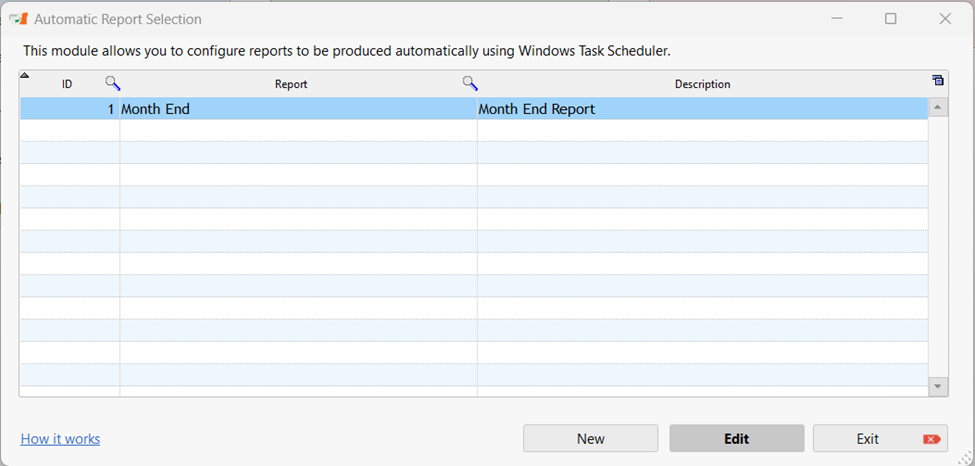
Step 1 — Enable Automated Tasks in MLM
Open MLM.
- Go to Settings > System Settings (Administrator).
- Click Automated and Overnight Tasks.
- Check Automated Reports.
- Save the settings.
This step is mandatory. Without this activation, the Windows task will not generate any reports.
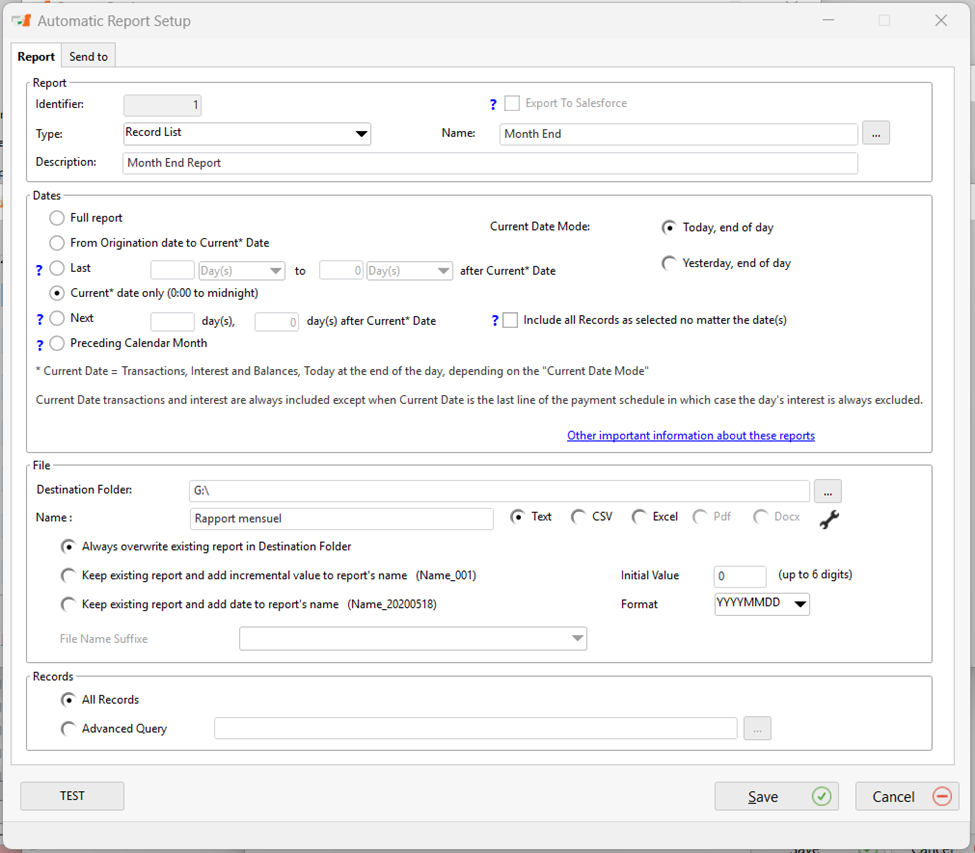
See the article dedicated to Automated Reports.
Step 2 — Open Windows Task Scheduler
- Open the Windows Control Panel.
- Go to Administrative Tools.
- Click Task Scheduler.
- Select Create a Basic Task
(recommended option for less experienced users)
Step 3 — Define the Task Schedule
- Enter a name and description for the task
(e.g., Margill Automated Reports). - Select the frequency
o Daily is the most common choice. - Choose the execution date and time
o Typically outside business hours (e.g., 1:00 AM).
Step 4 — Link the Task to MLM
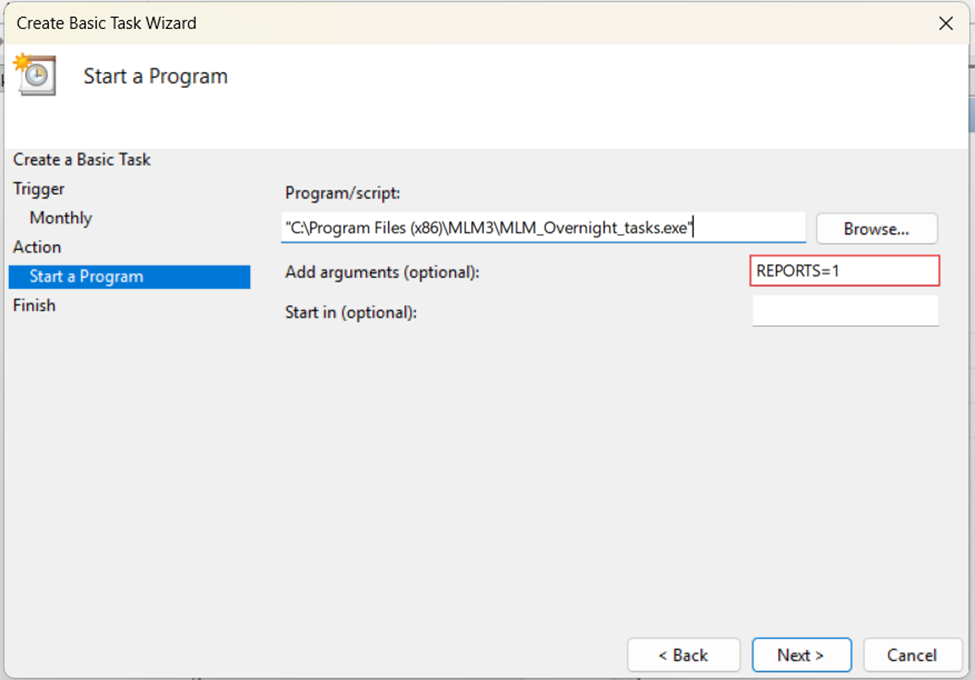
- At the Action step, select Start a program
- Click Browse.
- Select the file MLM_Overnight_tasks.exe, located in the Margill Loan Manager installation directory.
- Click Next
Step 5 — Add the Required Argument for Reports
To generate automated reports, the REPORTS argument is mandatory.
In the Arguments field, enter:
REPORTS=ID
Examples
- Single report: REPORTS=5
- Multiple reports:REPORTS=1;3;5
Without the REPORTS argument, the task will run, but no report will be generated.
Step 6 — Finalize the Task
Before clicking Finish, it is recommended to:
- Check Open the Properties dialog for this task when I click Finish.
- Verify, if needed with your IT department:
- Run whether user is logged on or not
- Run with highest privileges
The task is now active and will run automatically according to the defined schedule.
Best Practices
- Always test your automated reports before moving them into production.
- Periodically review the task logs.
- Avoid scheduling too many resource-intensive tasks at the same time.